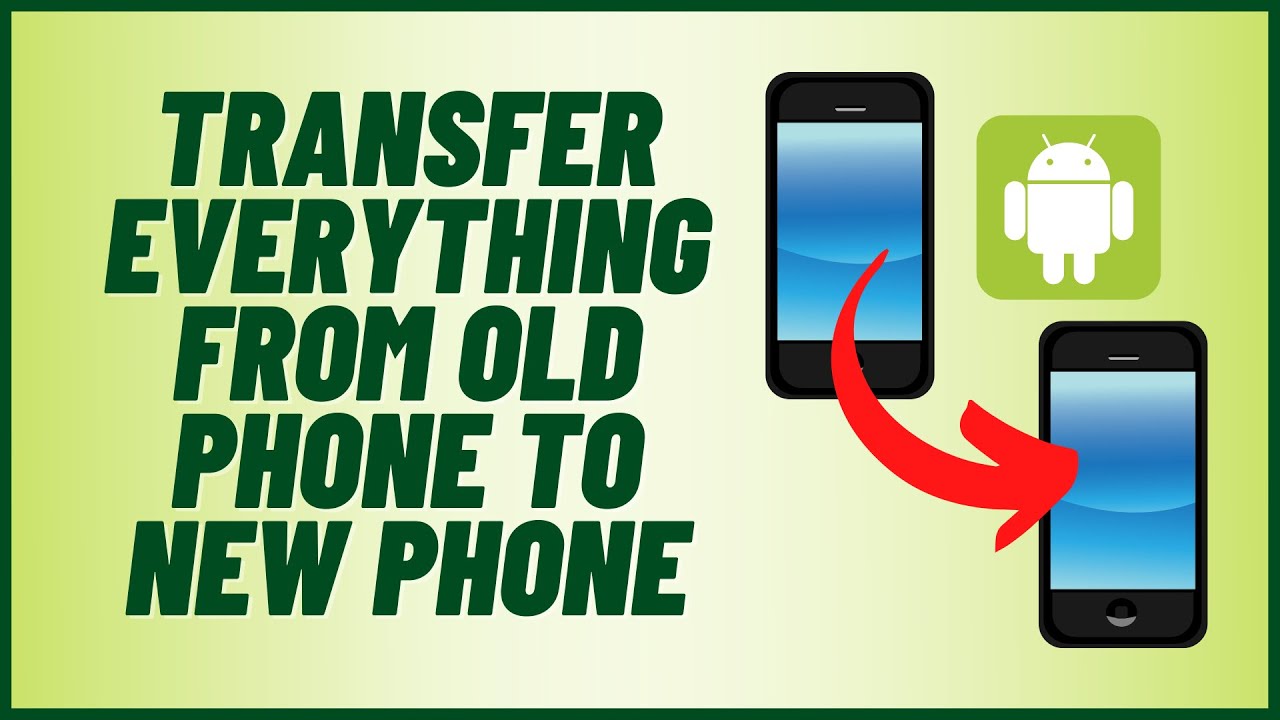

Switching to a new smartphone is exciting, but transferring your contacts, photos, apps, messages, settings, and other data can feel overwhelming. The good news is that in 2026, both Android and iOS have made the process smoother, faster, and more reliable than ever — with wireless options, cable support, and improved cross-platform tools.
Whether you’re moving Android to Android, iPhone to iPhone, or switching between platforms, here’s a step-by-step guide to transfer everything safely without losing important data.
Preparation Before Transfer (Do This First)
- Charge both phones to at least 50–70%.
- Update both devices to the latest OS version (Android 16+ or iOS 26+ recommended).
- Back up your old phone as a safety net:
- Android: Settings → Google → Backup (or Accounts & Backup).
- iPhone: Settings → [Your Name] → iCloud → iCloud Backup.
- Connect both phones to the same Wi-Fi network (for wireless transfers).
- Have your Google account (for Android) or Apple ID (for iPhone) ready.
- For large transfers (hundreds of GB), a USB-C cable is faster and more stable than wireless.
1. Android to Android Transfer (Easiest for Most Users)
Google’s built-in Copy apps & data tool during setup is the simplest and most comprehensive method.
During new phone setup:
- Turn on your new Android phone and follow the initial setup screens.
- When you reach the “Copy apps & data” or “Transfer your data” screen, tap Copy.
- Choose your connection method:
- Cable (recommended – faster): Connect old and new phones with a USB-C to USB-C cable.
- Wireless: Tap “No cable?” and follow prompts (newer Android versions show transfer progress percentage).
- On your old phone, follow on-screen instructions to connect and select data (apps, photos, videos, contacts, messages, settings, etc.).
- Wait for the transfer to complete — it can take 15 minutes to a few hours depending on data size.
Alternative methods:
- Samsung Smart Switch (best for Galaxy phones): Available on both phones via Settings → Accounts and backup. Supports wireless, cable, or PC/Mac.
- Google Backup Restore: Back up old phone to Google Drive, then sign in with the same account on the new phone and restore during setup.
- Manufacturer tools: OnePlus Clone Phone, Xiaomi Mi Mover, etc.
Most data (including app data for many apps) transfers automatically.
2. iPhone to iPhone Transfer
Apple makes same-platform transfers very seamless.
Best method: Quick Start (Direct Transfer)
- Place both iPhones next to each other (Bluetooth and Wi-Fi on).
- Turn on the new iPhone — a “Hello” screen appears.
- On the old iPhone, a Quick Start popup will appear. Tap Continue.
- Authenticate with Face ID or Touch ID on the old phone.
- On the new iPhone, enter the passcode from the old one.
- Choose Direct Transfer (transfers everything wirelessly or via cable) or restore from iCloud.
- Keep both phones close and plugged in until the process finishes.
Other options:
- iCloud Restore: Create a recent iCloud backup on the old phone, then choose “Restore from iCloud Backup” during new iPhone setup.
- Wired Transfer: Use a compatible cable (USB-C to Lightning or USB-C to USB-C) for faster speeds.
- Computer Backup: Use Finder (Mac) or Apple Devices app (Windows) for a full encrypted backup.
Quick Start usually transfers apps, photos, messages, settings, and even some app data directly.
3. Cross-Platform Transfers (Android ↔ iPhone)
Switching ecosystems is more challenging but much improved in 2026.
Android to iPhone:
- During iPhone setup, choose “Move Data from Android”.
- Download the free “Move to iOS” app on your old Android phone.
- Follow the prompts: Enter the code shown on the iPhone, select data (contacts, messages, photos, videos, bookmarks, mail accounts, etc.).
- Apps will be suggested for download on the App Store (app data itself usually doesn’t transfer).
iPhone to Android:
- During Android setup, look for the option to transfer from iPhone.
- Apple’s improved Transfer to Android tool (added/expanded in iOS 26.3) makes it simpler.
- Google and Apple’s ongoing collaboration is making cross-platform transfers (including Wi-Fi credentials, SMS, and more) increasingly seamless.
- Third-party apps like Wondershare Dr.Fone or iCareFone can help for more complete transfers.
Note: Not everything transfers perfectly between platforms (e.g., iMessage history to Android or certain app data). Manually re-login to apps and redownload purchased content.
Quick Comparison Table (2026)
| Transfer Type | Best Tool | Speed | Cable Option | What Transfers Well | Best For |
|---|---|---|---|---|---|
| Android → Android | Built-in Copy apps & data / Smart Switch | Fast | Yes | Apps, photos, messages, settings | Same-brand or any Android |
| iPhone → iPhone | Quick Start | Very Fast | Yes | Everything (apps + data) | Apple users |
| Android → iPhone | Move to iOS | Moderate | No | Contacts, photos, messages | Switching to iOS |
| iPhone → Android | Built-in + improved tools | Moderate | Limited | Contacts, photos, some messages | Switching to Android |
Additional Tips for a Smooth Transfer
- Photos & Videos: Use Google Photos or iCloud Photos for cloud syncing as a backup.
- WhatsApp: Back up chats in WhatsApp settings (to Google Drive or iCloud) before transfer.
- Passwords: Use a password manager (Google Password Manager, iCloud Keychain, or 1Password) — they sync across devices.
- After Transfer: Check for missing data, update apps, and sign in to accounts. Factory reset the old phone before selling or giving it away.
- Large Data Volumes: Use a cable + keep phones plugged in to avoid interruptions.
- Troubleshooting: If wireless fails, try cable or cloud backup restore. Ensure enough storage on the new phone.
By using the official built-in tools during initial setup, most users can transfer the majority of their data in under an hour. Always create a backup first — it gives you peace of mind in case anything goes wrong.
Start with your new phone’s setup wizard, and you’ll be up and running on your new device quickly!
This section fits perfectly as a standalone article or can be added to a larger tech guide. Let me know if you want any section expanded, shortened, or tailored to a specific platform.