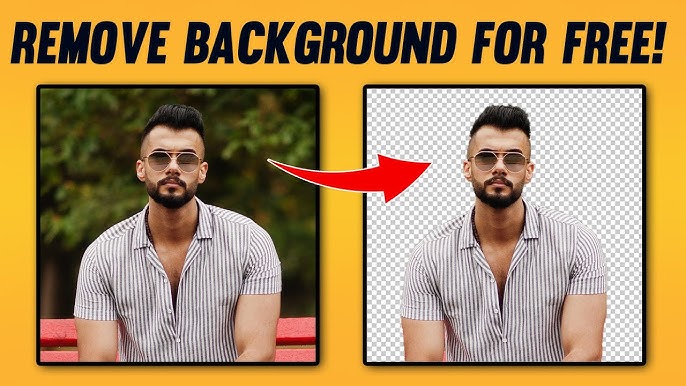

Removing the background from an image used to require complex software like Photoshop and hours of manual work. In 2026, powerful AI-powered online tools make it possible in seconds — completely free, with no signup in many cases, and excellent results even on complex subjects like hair, fur, or transparent objects.
Whether you’re a blogger creating product photos, an e-commerce seller, a social media creator, or just cleaning up personal images, free online background removers deliver professional transparent PNGs instantly. This guide covers the best options and step-by-step instructions.
Why Use an Online AI Background Remover?
- Speed — One-click removal vs. manual masking.
- Accuracy — Modern AI handles fine details better than ever.
- Cost — Truly free tools with no watermarks or limits exist.
- Convenience — No software installation; works on any device (desktop or mobile).
- Use cases — Product photography, portraits, memes, YouTube thumbnails, blog images, and more.
Top Free Online Background Remover Tools in 2026
Here are the most reliable, highly rated free tools based on current performance, ease of use, and user feedback:
- WaveSpeed Background Remover — Often ranked as the best fully free option. No signup, no watermarks, strong privacy, and precise edge detection. Ideal for everyday use.
- Adobe Express Background Remover — Professional-quality results powered by Adobe’s AI. Free to use (with generous limits), great for further editing in the same app. Works well on mobile too.
- Photoroom Background Remover — Excellent for product photos. Fast, no signup required for basic use, and allows quick background replacement with studio or custom options.
- Pixlr BG Remover — Simple, browser-based, and completely free. Includes fine-tune options if the AI needs minor adjustments.
- Removal.AI — Strong accuracy with no signup needed. Good for bulk processing and e-commerce.
- Pixa (formerly Pixelcut) — Clean interface, fast processing, and free HD downloads. Popular among creators.
- EXPERTE.com Background Remover or NoteGPT AI Background Remover — Truly unlimited and no-signup tools focused on privacy and simplicity.
Other solid mentions: Slazzer, LetsEnhance.io (with upscaling), and Pixian.AI.
Note: Tools like Canva and some Remove.bg features offer free trials or limited uses before requiring Pro upgrades. For completely unrestricted free use, prioritize WaveSpeed, Photoroom (basic), or Pixlr.
Step-by-Step: How to Remove Background from Images Online (Free)
The process is nearly identical across most tools:
- Go to the Tool Visit the website (e.g., wavespeed.ai background remover, adobe.com/express, photoroom.com/tools/background-remover, or pixlr.com/remove-background).
- Upload Your Image Click “Upload” or simply drag and drop your photo (JPEG, PNG, or sometimes HEIC/WebP supported). For best results: Use clear, well-lit images with good contrast between subject and background.
- Let AI Process The tool automatically detects and removes the background in 1–5 seconds. Most use advanced AI for hair, edges, and complex objects.
- Refine (If Needed) Some tools (like Pixlr or Photoroom) offer a “fine-tune” or brush tool to restore or erase small areas manually.
- Choose Output Keep it transparent (PNG) or add a new background (white, color, or custom image).
- Download Save as PNG for transparency. Most free tools offer full-resolution HD downloads without watermarks.
Pro Tip: For batch processing (multiple images at once), check Photoroom, Removal.AI, or WaveSpeed — many now support uploading several files.
Quick Comparison Table (2026 Free Tools)
| Tool | No Signup | No Watermarks | HD Download | Best For | Bulk Support | Extra Features |
|---|---|---|---|---|---|---|
| WaveSpeed | Yes | Yes | Yes | General / Privacy | Limited | Fast & clean edges |
| Adobe Express | Yes | Yes | Yes | Professional editing | No | Full editor integration |
| Photoroom | Yes | Yes (basic) | Yes | Product photos | Yes | Background replacement |
| Pixlr BG Remover | Yes | Yes | Yes | Quick edits | No | Fine-tune brush |
| Removal.AI | Yes | Yes | Yes | E-commerce | Yes | Presets & editor |
| Pixa (Pixelcut) | Yes | Yes | Yes | Creators & social | Limited | Mobile-friendly |
Tips for Best Results
- Image Quality — High-resolution, well-focused photos with clear subjects work best. Avoid heavy compression or blurry edges.
- Complex Subjects — Hair, lace, or smoke can still challenge AI — use tools with manual refinement options or try multiple tools.
- File Size — Most tools handle large files, but very high-res images (over 10–20 MP) may process slower on free tiers.
- Privacy — Choose no-signup tools (like WaveSpeed or EXPERTE) if you don’t want images stored on servers. Some process locally in-browser.
- Output Format — Always download as PNG to preserve transparency.
- Combine with Other Edits — After removal, use the same tool or Canva/Adobe Express to add shadows, resize, or optimize for web/blog use.
Common Use Cases
- Bloggers & SEO — Clean product or featured images for faster page loads and better visuals.
- E-commerce — Professional product shots on white or custom backgrounds.
- Social Media — Isolated subjects for Instagram, TikTok, or memes.
- Design Projects — Transparent PNGs for overlays, logos, or composites.
With these free AI tools, removing backgrounds is no longer a barrier — it’s a quick, effortless step that elevates your content. Start with WaveSpeed or Photoroom for instant results, or Adobe Express if you want to continue editing professionally.
Test a few images on different tools to see which AI model handles your specific style best. In most cases, you’ll get studio-quality transparent images in under 10 seconds — completely free.