
How to Make a Thumbnail for YouTube Without Photoshop
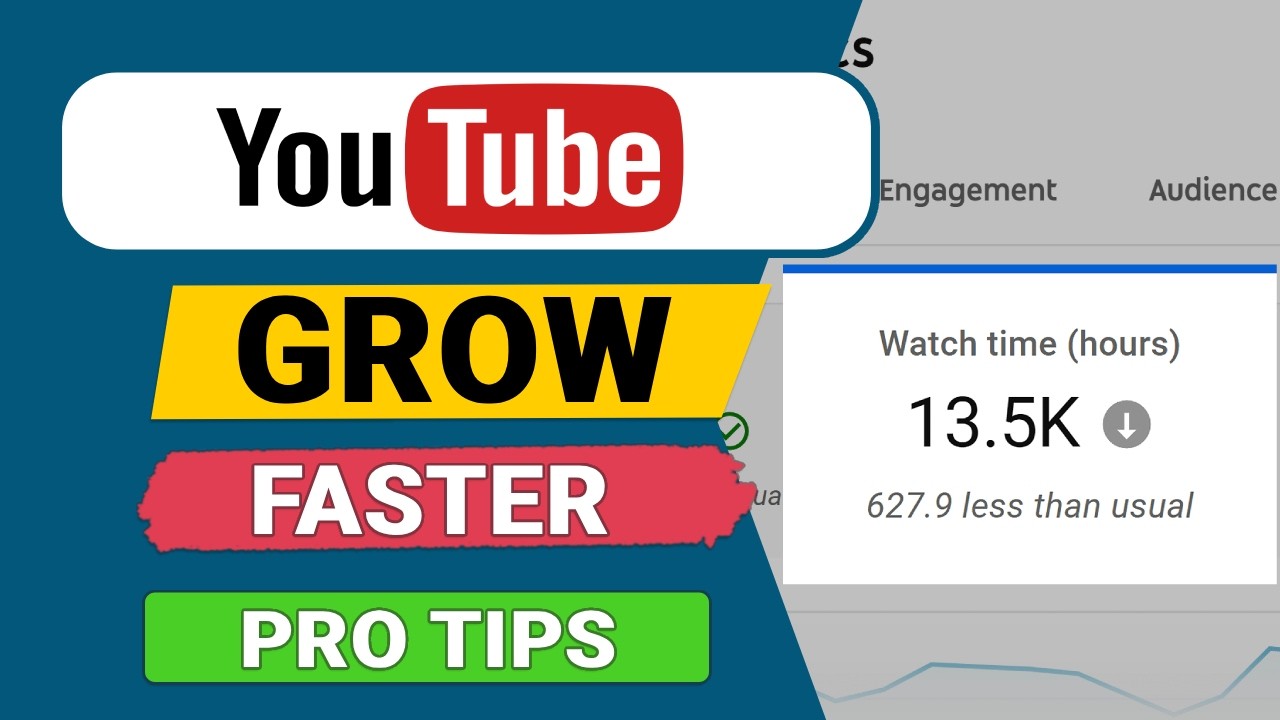
YouTube thumbnails are one of the most powerful factors for increasing click-through rates (CTR) and organic views. A strong thumbnail can boost clicks by 20–50% or more, but many creators believe they need expensive software like Photoshop to create professional-looking ones. That’s no longer true.
In 2026, powerful free (or freemium) tools with drag-and-drop interfaces, AI features, and ready-made templates make it easy for anyone to design high-CTR thumbnails — even complete beginners. No design skills or paid subscriptions required for most cases.
Here’s a step-by-step guide to creating eye-catching YouTube thumbnails without Photoshop.
1. Know the YouTube Thumbnail Specifications (2026 Standards)
Before starting, get the technical details right to avoid blurry or cropped uploads:
- Recommended size: 1280 × 720 pixels (16:9 aspect ratio)
- Minimum width: 640 pixels
- File formats: JPG or PNG (PNG for better quality with transparency; keep file size under 2MB)
- Best practices: High contrast, big readable text (3–5 words max), one clear focal point (often a face with strong emotion), and mobile-friendly design (most views happen on phones)
Always design at full 1280×720 resolution for sharp results.
2. Choose the Best Free Tool for You
Here are the top free tools in 2026 that creators love for YouTube thumbnails:
- Canva — Best overall for beginners. Thousands of YouTube-specific templates, Magic Studio AI tools (background remover, text effects, image enhancer), drag-and-drop ease, and no watermarks on free exports.
- Adobe Express — Excellent for clean, polished designs with professional templates and quick AI features. Great if you like Adobe’s style.
- CapCut — Ideal if you already edit videos in CapCut. Includes AI thumbnail generator, templates, and seamless integration with your footage.
- Pixlr — Powerful browser-based editor with layers, effects, and YouTube thumbnail templates. Good for more advanced tweaks.
- Photopea — Free Photoshop-like interface in your browser (no installation). Perfect if you want advanced controls without paying.
- AI-Powered Options (like WayinVideo or built-in tools in Canva/CapCut) — Describe your thumbnail in text and let AI generate options instantly.
Recommendation: Start with Canva — it’s the most popular and forgiving for new creators.
- 3. Step-by-Step: How to Create a Thumbnail in Canva (Easiest Method)
- Go to Canva.com and sign up for a free account (or use the mobile app).
- Search for “YouTube Thumbnail” in the templates or create a custom design with dimensions 1280 × 720 px.
- Choose a template or start blank:
- Pick a high-contrast background (bright colors or gradients work well).
- Add your main image:
- Upload a screenshot from your video, a selfie with strong expression, or stock photos.
- Use Canva’s Magic Studio → Background Remover or Magic Edit for quick cleanups.
- Add bold text:
- Keep it to 3–5 words (e.g., “I Tried This in 2026…” or “Beginner Mistake!”).
- Use large, thick fonts with high contrast (white text with black outline or vice versa).
- Enhance with elements:
- Add arrows, emojis, shapes, or borders for emphasis.
- Use AI tools to generate or enhance images if needed.
- Preview and tweak:
- Zoom out to check how it looks small (like on mobile).
- Download as JPG or PNG (high quality, no watermark on free plan).
Total time for a solid thumbnail: 5–15 minutes once you get the hang of it.
4. Design Tips for High-CTR Thumbnails in 2026
- Faces sell: Use your own face with exaggerated emotions (surprise, excitement, curiosity). Big eyes and clear expressions perform best.
- Contrast is king: Bright subject against dark background (or vice versa) makes thumbnails pop in YouTube’s feed.
- Text rules: Readable at tiny sizes. Limit text, make it huge, and test contrast.
- Color psychology: Red, yellow, and orange drive urgency and clicks in many niches.
- Avoid clutter: One main idea per thumbnail. Less is often more.
- Test variations: Create 2–3 versions and use tools like YouTube’s thumbnail A/B testing (or external tools) to see what performs better.
- Brand consistency: Use the same font, color scheme, and style across your thumbnails so viewers recognize your channel instantly.
5. Alternative Quick Methods
- CapCut Thumbnail Maker: Open your video in CapCut → Export a frame → Use the built-in design tools or AI generator to add text and effects.
- Adobe Express: Similar to Canva but with stronger photo editing. Search for YouTube templates and customize.
- AI-First Approach: Tools like Canva Magic or dedicated AI thumbnail generators let you type a prompt (e.g., “excited man pointing at exploding laptop with text ‘This Changed Everything in 2026’”) and generate multiple options.
- Photopea (for Photoshop fans): Open Photopea.com, create a 1280×720 canvas, and use familiar layers and tools — completely free.
Quick Comparison of Free Tools (2026)
| Tool | Best For | AI Features | Ease of Use | Mobile App | Watermark-Free Exports |
|---|---|---|---|---|---|
| Canva | Beginners & fast designs | Excellent (Magic Studio) | Very High | Yes | Yes |
| Adobe Express | Polished professional look |
| High | Yes | Yes |
| CapCut | Video editors | Strong AI generator | High | Excellent | Yes |
| Pixlr | Creative control | Moderate | Medium | Yes | Yes |
| Photopea | Advanced editing | None (manual) | Medium | No | Yes |
Final Tips for Success
- Always create thumbnails after filming — choose the most emotionally charged or surprising frame from your video.
- Upload custom thumbnails (don’t rely on YouTube’s auto-generated ones).
- Study top creators in your niche: Pause on their videos and analyze what makes their thumbnails clickable.
- Iterate based on data: Check YouTube Analytics for CTR and refine your style over time.
You don’t need Photoshop (or any paid software) to make thumbnails that compete with big channels. Tools like Canva and CapCut have democratized thumbnail design in 2026 — the only thing stopping you is starting.
Pick one tool today, design your next 3 thumbnails using the steps above, and watch how even small improvements in CTR can grow your views organically.
This article is actionable, up-to-date, and flows well with your previous YouTube-related pieces (like increasing views organically). It includes practical steps, a comparison table, and 2026-relevant tips. You can copy it directly into your blog.