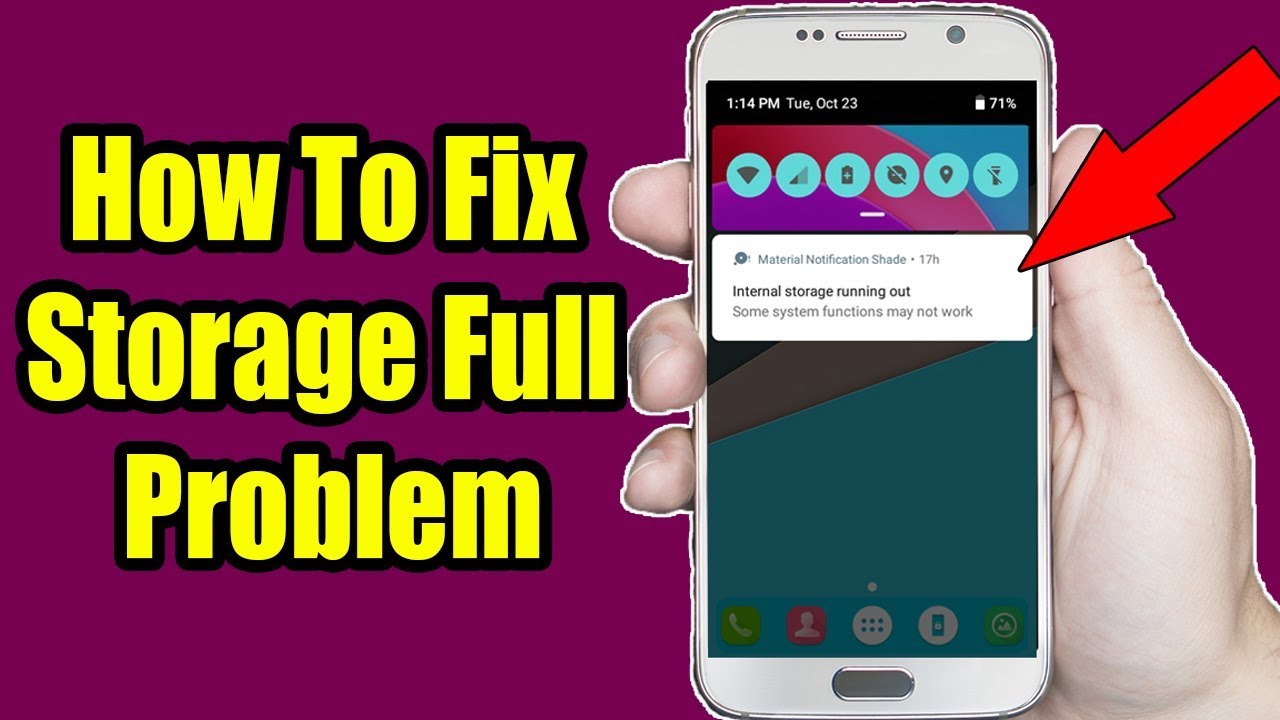

Running out of storage on your Android phone is one of the most frustrating issues. You start getting constant “Storage is full” or “Insufficient storage available” warnings, apps refuse to install or update, the phone slows down, and sometimes even basic functions become unreliable.
The good news is that you can usually reclaim several gigabytes of space quickly — often without deleting important photos, videos, or apps. In 2026, Android (including Android 16) offers smarter built-in tools, an improved App Archive feature, and better storage management.
Here’s a step-by-step guide that works on Samsung, Google Pixel, Xiaomi, OnePlus, Realme, Oppo, Vivo, and most other Android devices.
1. Check What’s Taking Up Space (Start Here)
Before deleting anything, identify the culprits.
- Go to Settings > Storage (or Settings > Battery and device care > Storage on Samsung).
- You’ll see a breakdown: Apps, Photos & videos, Audio, Downloads, Cached data, and System.
- Tap on each category to see details.
Pro tip: Sort apps by size in Settings > Apps to quickly spot the biggest space hogs.
2. Clear App Cache (Fastest & Safest First Step)
Cached data can easily eat up 5–10 GB over time.
Quick method (all at once):
- Go to Settings > Storage > Cached data (or Free up space).
- Tap Clear or Clean.
Per-app method (more control):
- Go to Settings > Apps.
- Sort by size.
- Tap a large app → Storage & cache → Clear cache (not “Clear data” unless you want to reset the app).
Clearing cache does not delete your accounts, settings, or saved files.
3. Use Files by Google (Best Built-in Cleaner)
Google’s free Files app is excellent for cleaning junk in 2026.
- Open the Files by Google app (pre-installed on most devices; download from Play Store if missing).
- Tap the menu (three lines) → Clean.
- Review suggestions:
- Junk files
- Duplicate files
- Old screenshots
- Unused APK files
- Large files
- Select and delete what you don’t need.
Many users reclaim 2–8 GB with this single step.
4. Delete or Archive Unused Apps
- Uninstall apps you rarely use.
- In Android 16 and newer, use the new App Archive feature:
- Go to Settings > Apps.
- Select rarely used apps → Archive.
- This removes the app’s code and temporary files (saving up to 60% space per app) while keeping your data and icon. You can restore it with one tap later.
5. Manage Photos & Videos (Biggest Storage Killer)
Photos and videos often consume the most space.
- Open Google Photos.
- If Backup is enabled, tap Library > Utilities > Free up space (or “Manage device storage”).
- This safely deletes local copies of files already backed up to the cloud.
Additional options:
- Turn on Storage Saver or Optimized quality in Google Photos.
- Delete duplicates or blurry shots using the built-in suggestions.
- Move large videos to Google Drive or an SD card (if your phone supports it).
6. Clear Other Hidden Space Hogs
- Downloads folder: Delete old PDFs, APKs, and zip files.
- WhatsApp/Telegram/Signal: Go to app settings → Storage → Clear sent media or delete old chats with large attachments.
- Offline maps & podcasts: Remove downloaded content you no longer need.
- Trash/Recycle bin: Empty the trash in Files, Gallery, and Google Photos (deleted items stay for 30–60 days).
7. Advanced Fixes for “Storage Full But Nothing to Delete” (Ghost Storage)
Sometimes the phone shows full storage even after cleaning. Try these:
- Reboot in Safe Mode to identify rogue apps: Press and hold Power button → long-press “Power off” → tap Safe Mode. If storage frees up, uninstall recently installed apps.
- Wipe cache partition (no data loss):
- Power off your phone.
- Boot into Recovery mode (usually Volume Up + Power; check your model).
- Select Wipe cache partition → Yes → Reboot.
- Reset Media Storage (fixes indexing bugs): Go to Settings > Apps > Show system apps → search for “Media Storage” → Storage → Clear data.
- Check and reformat your SD card if you use one (back up first).
8. Long-Term Prevention Tips
- Enable automatic cache clearing in Settings > Storage (available on many devices).
- Use cloud backup for photos (Google Photos) and files (Google Drive).
- Regularly review Settings > Storage every few weeks.
- Avoid installing too many games or heavy social media apps.
- Consider a phone with expandable storage or higher internal capacity next time.
Quick Comparison: How Much Space You Can Typically Free
| Method | Expected Space Saved | Difficulty | Data Loss Risk |
|---|---|---|---|
| Clear App Cache | 2–10 GB | Very Easy | None |
| Files by Google Clean | 1–8 GB | Easy | Low |
| Free up backed-up photos | 5–20+ GB | Easy | None (if backed up) |
| Uninstall/Archive Apps | 1–15 GB | Easy | Low |
| Wipe Cache Partition | 0.5–3 GB | Medium | None |
Final Advice
Start with clearing cache and using Files by Google — most people recover enough space in under 5 minutes. If the problem keeps returning, check for apps that download large files automatically (like offline video apps or cloud sync tools).
After freeing space, restart your phone to let Android re-index everything properly.
By following these steps, you can fix the “Storage Full” problem on Android quickly and keep your device running smoothly in 2026.