
Best Free Tools to Clean Junk Files on PC
Over time, your Windows PC accumulates junk files — temporary files, cache, old Windows updates, browser data, thumbnails, and leftover files from uninstalled apps. These can eat up gigabytes of storage, slow down your system, and reduce overall performance.
The good news? You don’t need expensive software. In 2026, Windows has powerful built-in tools, and several excellent free third-party cleaners can safely remove junk without risking your system. Here’s a curated list of the best free options, ranked by ease of use and effectiveness.
1. Built-in Windows Tools (Safest Starting Point – No Installation Needed)
Storage Sense (Windows 11/10)
Microsoft’s modern automatic cleaner. It intelligently removes temporary files, empties the Recycle Bin, and clears old downloads when your drive is low on space.
How to use:
- Go to Settings > System > Storage.
- Turn on Storage Sense and configure cleanup schedules.
- Click Run Storage Sense now for an instant clean.
It’s lightweight, official, and integrates perfectly with Windows. Great for ongoing maintenance.
Disk Cleanup
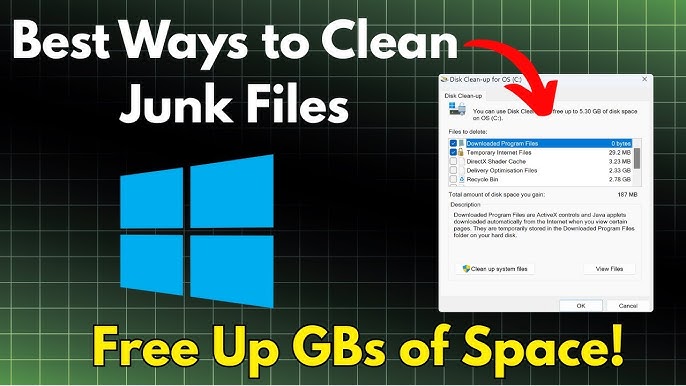
The classic tool that still works well for clearing system files.
- Search for Disk Cleanup in the Start menu.
- Select your drive (usually C:) and let it scan.
- Check categories like Temporary files, Thumbnails, Recycle Bin, and Delivery Optimization Files.
- For deeper cleaning, click Clean up system files.
Microsoft PC Manager (Highly Recommended in 2026)
A free, official Microsoft tool that many users now prefer over third-party cleaners. It cleans junk, frees RAM, manages large files, and optimizes startup without bloat or ads.
- Download from the Microsoft Store or official site.
- Features a clean interface with one-click cleanup, boost mode, and storage analysis.
- Trusted because it’s from Microsoft and avoids aggressive registry tweaks.
2. Best Third-Party Free Tools
BleachBit (Best Open-Source & Privacy-Focused Cleaner)
BleachBit is widely regarded as one of the strongest free alternatives to older tools. It’s open-source, highly customizable, and excels at removing privacy-sensitive data and deep junk files that Windows misses.
Strengths:
- Cleans browser traces, application caches, Windows temp files, and more.
- Option to shred files securely (overwrite so they can’t be recovered).
- No ads, no bloat, and portable version available.
Best for: Users who want maximum control and privacy. Use with caution — select only what you understand.
WizTree (Fastest Disk Space Analyzer)
Before cleaning, you need to know what’s taking up space. WizTree scans your entire drive in seconds and shows a visual treemap of large files and folders.
- Extremely fast (uses MFT scanning on NTFS drives).
- Free for personal use.
- Pair it with manual deletion or other cleaners for targeted results.
Many 2026 guides recommend starting with WizTree to identify real space hogs before running any cleaner.
Wise Disk Cleaner (Lightweight & Effective)
A simple, free tool focused purely on cleaning junk without unnecessary extras.
- Cleans temporary files, browser history, cookies, and system caches.
- Includes a defrag option for HDDs.
- Very low system resource usage.
Revo Uninstaller (Free Version) – For Leftover Junk from Apps
Uninstalling programs often leaves behind junk. Revo Uninstaller finds and removes leftover files and registry entries safely.
- Excellent for thorough app removal.
- Free version is powerful enough for most users.
Other Notable Mentions
- CleanMate: Praised in recent guides for one-click junk and registry cleaning (use registry feature sparingly).
- Bulk Crap Uninstaller (BCUninstaller): Open-source tool for bulk removal of unwanted apps and their leftovers.
- Ashampoo WinOptimizer Free: Offers a decent free edition for junk cleanup and system tweaks.
Note on CCleaner: While still popular and functional in its free version for basic temp file removal, many users and experts in 2026 recommend alternatives due to past privacy concerns, ads in the free edition, and bloat. Stick to it only if you’re familiar and avoid the registry cleaner.
Quick Comparison Table (2026)
| Tool | Type | Best For | Ease of Use | Open Source | Registry Cleaning | Ads/Bloat | Recommendation Level |
|---|---|---|---|---|---|---|---|
| Storage Sense + Disk Cleanup | Built-in | Everyday automatic cleaning | Excellent | N/A | No | None | Highest (Start Here) |
| Microsoft PC Manager | Official App | All-in-one safe cleanup | Excellent | No | Minimal | None | Very High |
| BleachBit | Third-party | Deep cleaning & privacy | Good | Yes | No | None | High |
| WizTree | Analyzer | Finding large files quickly | Excellent | No | No | None | Very High |
| Wise Disk Cleaner | Third-party | Simple junk removal | Excellent | No | No | Low | High |
| Revo Uninstaller Free | Uninstaller | Removing app leftovers | Good | No | Limited | Low | High |
Safety Tips When Cleaning Junk Files
- Always create a System Restore Point before running any third-party tool.
- Avoid aggressive registry cleaners — modern Windows rarely needs them and they can cause instability.
- Review what the tool wants to delete before confirming.
- Combine tools: Use WizTree to analyze → Built-in tools for basics → BleachBit or Wise for deeper cleans.
- Run cleaners once a month or when your drive is over 80% full.
- For SSDs, focus on freeing space rather than defragmentation (Windows handles TRIM automatically).
Final Advice
Start with Windows Storage Sense and Microsoft PC Manager — they’re free, safe, and sufficient for most users in 2026. If you need more power or visualization, add WizTree and BleachBit.
Regular light cleaning keeps your PC fast, extends SSD lifespan, and frees up valuable storage without risking important files. Avoid “all-in-one optimizers” that promise miracles — simple, targeted junk removal is far more effective.
Keep your Windows updated, and you’ll rarely need heavy cleaning. A clean PC is a faster, more reliable PC.