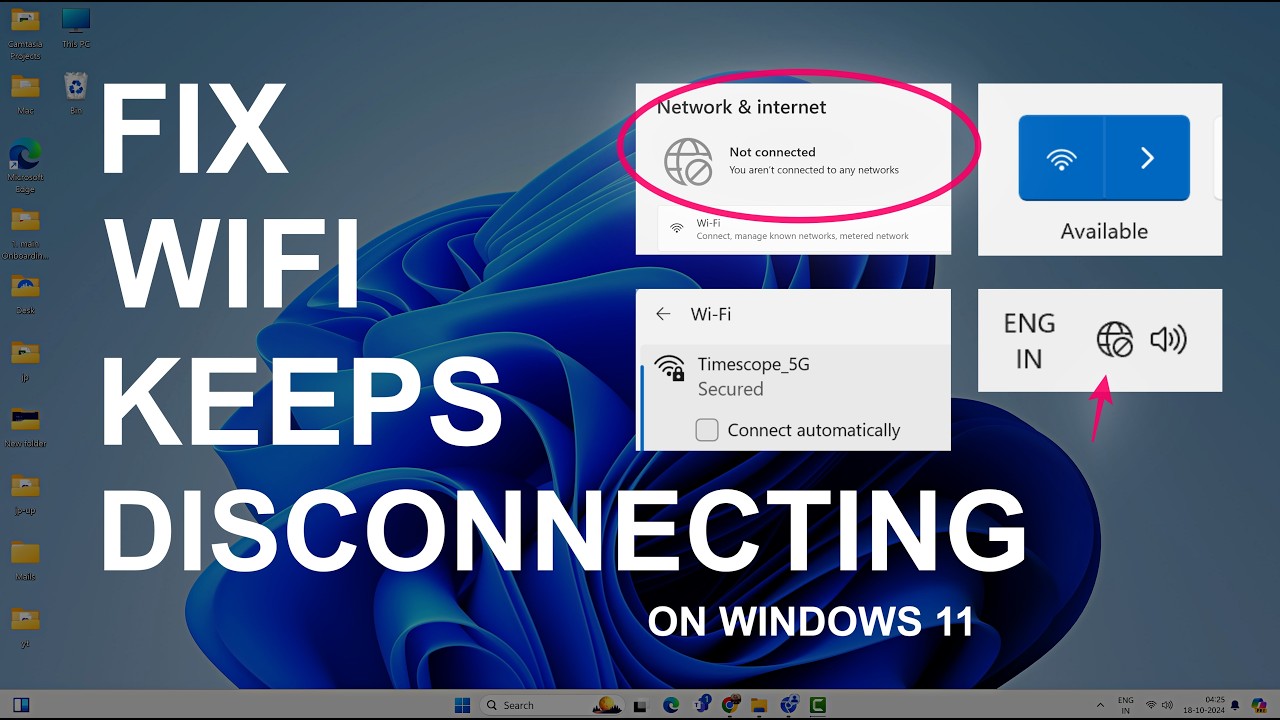

To Fix Wi-Fi Disconnecting Problem on Laptop
Wi-Fi randomly disconnecting on a laptop is one of the most frustrating issues, especially during work, streaming, or gaming. The connection drops every few minutes, shows “No Internet, Secured,” or the Wi-Fi icon disappears entirely — while other devices stay connected fine.
In 2026, this problem on Windows 11 laptops is usually caused by aggressive power management, outdated or buggy Wi-Fi drivers, corrupted network settings, signal interference, or router compatibility issues (especially with Wi-Fi 6/6E and WPA3).
Fortunately, most cases can be fixed permanently with simple troubleshooting steps. Follow this guide in order — the first few fixes resolve the issue for over 70-80% of users.
Common Causes of Wi-Fi Disconnecting on Laptops
- Power-saving features turning off the Wi-Fi adapter to save battery.
- Outdated, corrupted, or incompatible Wi-Fi drivers (Intel, Realtek, MediaTek, etc.).
- Corrupted network stack or cached profiles.
- Weak signal, channel interference, or router settings (WPA3/mixed mode).
- Recent Windows updates conflicting with the adapter.
Step-by-Step Fixes (Start from the Top)
1. Quick Restart (Basic but Effective)
- Restart your laptop and your router/modem.
- Unplug the router for 30 seconds, then plug it back in.
- This clears temporary glitches in both devices.
2. Disable Power Management for Wi-Fi Adapter (Most Common Fix)
Windows often powers down the Wi-Fi adapter on laptops to save energy, causing random drops.
How to do it:
- Right-click the Start button → select Device Manager.
- Expand Network adapters.
- Right-click your Wi-Fi adapter (e.g., Intel Wi-Fi 6E AX211, Realtek RTLxxxx, etc.) → Properties.
- Go to the Power Management tab.
- Uncheck “Allow the computer to turn off this device to save power.”
- Click OK and restart your laptop.
This single change fixes the problem for most laptop users.
3. Update or Reinstall Wi-Fi Drivers
Outdated drivers are a frequent culprit, especially after Windows updates.
Method A – Update via Device Manager:
- In Device Manager → right-click Wi-Fi adapter → Update driver → “Search automatically for drivers.”
Method B – Manual Update (Recommended):
- Visit your laptop manufacturer’s support site (Dell, HP, Lenovo, ASUS, etc.) and download the latest Wi-Fi driver for your exact model.
- Or go directly to the chip maker: Intel Driver & Support Assistant, Realtek website, etc.
- Uninstall the current driver first: Right-click adapter → Uninstall device → check “Delete the driver software for this device” → restart. Windows will reinstall it, then update with the fresh version.
If the issue started after a driver update, use Roll Back Driver in the Properties window.
4. Run Network Troubleshooter and Reset Network Settings
- Go to Settings → System → Troubleshoot → Other troubleshooters → Run the Network Adapter and Internet Connections troubleshooters.
- For a deeper reset (effective for corrupted settings):
Open Command Prompt as Administrator.
Run these commands one by one (press Enter after each):
textnetsh winsock reset netsh int ip reset ipconfig /release ipconfig /renew ipconfig /flushdnsRestart your laptop after running them.
Alternative full Network Reset:
- Go to Settings → Network & internet → Advanced network settings → Network reset → Reset now. (This removes all Wi-Fi networks; you’ll need to reconnect.)
5. Forget and Reconnect to the Wi-Fi Network
- Go to Settings → Network & internet → Wi-Fi → Manage known networks.
- Select your network → Forget.
- Reconnect and enter the password again.
This clears corrupted network profiles.
6. Additional Advanced Fixes
- Disable MAC Address Randomization: Settings → Network & internet → Wi-Fi → [Your network] → turn off “Use random hardware addresses.”
- Change Power Plan: Settings → System → Power & battery → Set to Balanced or Best performance. In advanced power settings, set Wireless Adapter Settings → Power Saving Mode to Maximum Performance.
- Check for Signal Issues: Move closer to the router. Avoid interference from microwaves, thick walls, or other 2.4GHz devices. Log into your router (usually 192.168.0.1 or 192.168.1.1) and try changing the Wi-Fi channel to a less crowded one (use 5GHz band if possible).
- Router-Side Tweaks: Temporarily disable WPA3 and use WPA2-Personal (AES) if you have mixed-mode security issues. Update your router’s firmware.
- Airplane Mode Trick: Turn Airplane mode ON for 10 seconds, then OFF. This restarts the Wi-Fi radio.
7. When Nothing Works
- Run System File Checker: Open Command Prompt as admin → type sfc /scannow and press Enter.
- Test with a USB Wi-Fi adapter to rule out hardware failure.
- Perform a clean boot or reset Windows (keep files) as a last resort.
- If the laptop is under warranty and the issue is persistent, contact the manufacturer — it could be a hardware defect in the Wi-Fi card.
Quick Troubleshooting Table
| Step | Success Rate | Time Required | When to Try |
|---|---|---|---|
| Restart router + laptop | Medium | 2 mins | First step |
| Disable Power Management | Very High | 3 mins | Most common fix |
| Update/Reinstall Driver | High | 5-10 mins | After power fix fails |
| Network Reset Commands | High | 5 mins | Corrupted settings |
| Forget Network | Medium | 2 mins | Profile issues |
| Router Channel/Security | Medium | 10 mins | Multiple devices affected |
Prevention Tips for 2026
- Keep Wi-Fi drivers and Windows updated (but test new drivers).
- Use the 5GHz band for stability when possible.
- Avoid cheap third-party “Wi-Fi optimizer” tools — they often cause more issues.
- For frequent travelers, consider a reliable USB-C Wi-Fi 6E adapter as backup.
By following these steps, especially disabling power management and updating drivers, most users report stable Wi-Fi connections again. Start with the top fixes and work downward.
If the problem persists after trying everything, reply with your laptop model, Wi-Fi adapter name (from Device Manager), and Windows version for more targeted help.