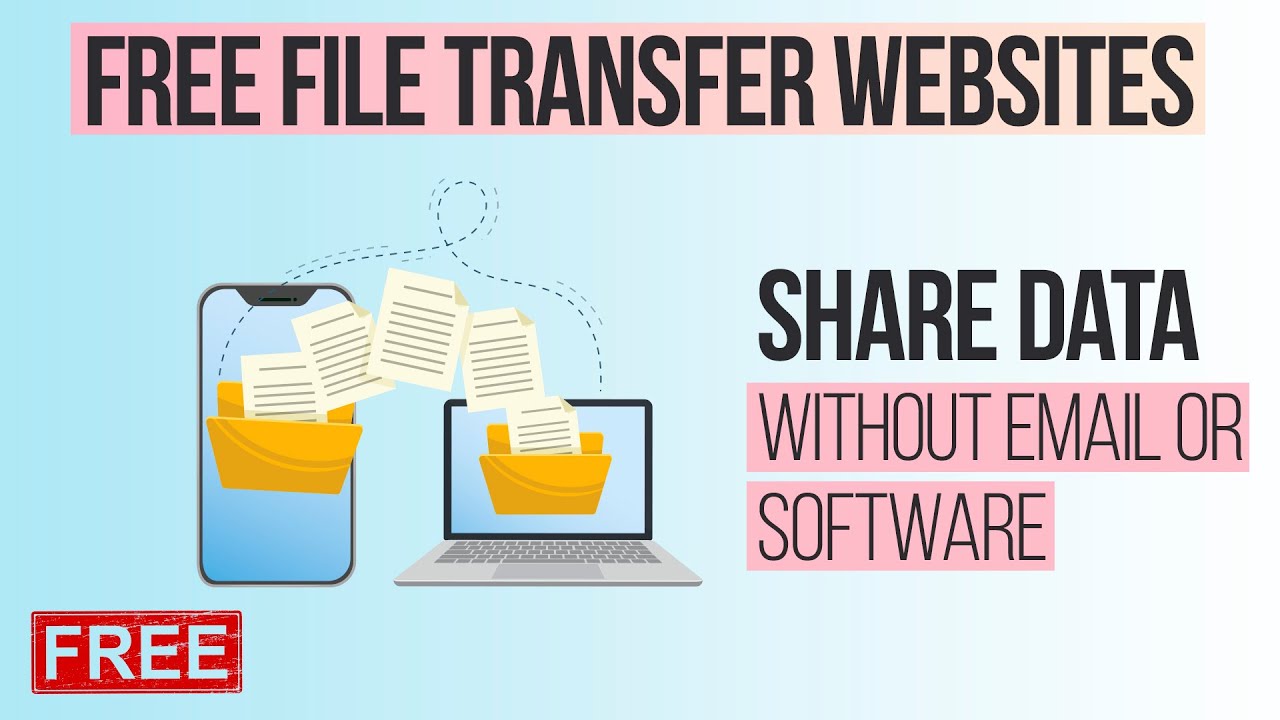
Email attachments have strict limits — typically 20–25 MB for Gmail, Outlook, and most providers. When dealing with high-resolution videos, RAW photos, large PDFs, design files, or software backups, you need better alternatives. In 2026, sharing large files without relying on email is easier, faster, and more secure than ever, thanks to dedicated transfer services, cloud storage links, and encrypted platforms.
Whether you need a one-time send or ongoing collaboration, these methods bypass inbox restrictions while offering password protection, expiration dates, and download tracking.
Why Avoid Email for Large Files?
- Size limits — Most services cap attachments at 25 MB.
- Security risks — Unencrypted attachments can be intercepted or blocked by spam filters.
- Delivery issues — Large files often fail to send or clog recipients’ inboxes.
- Better alternatives — Modern tools provide shareable links, end-to-end encryption, and control over access.
Best Methods to Share Large Files in 2026
1. Use Dedicated File Transfer Services (Quickest for One-Off Sends) These platforms let you upload files and generate a secure download link that you can share via chat apps (WhatsApp, Slack, Teams, Discord), SMS, or any messaging service — no email required.
Popular options:
- Smash — Free with no strict file size limit (practical for very large files), elegant interface, password protection, and expiration dates. No account needed for basic use.
- WeTransfer — Still widely used; free tier supports up to 2–3 GB (higher with Pro). Simple drag-and-drop and link sharing.
- TransferNow — Up to 250 GB per transfer, secure, no mandatory registration.
- Filemail — Up to 5 GB free, virus scanning, and secure shareable links.
- Send Anywhere — Up to 10 GB free, peer-to-peer option for faster transfers, six-digit key protection.
- Others worth checking: SwissTransfer, MyAirBridge, Wormhole (with auto-expiration), and TransferXL.
How to use them:
- Go to the service’s website.
- Drag and drop your file(s) or folder.
- Choose options: add password, set expiration (e.g., 7 days), enable notifications.
- Generate the link and copy it.
- Share the link directly via messaging apps, social media, or even embed it on a website.
2. Cloud Storage Share Links (Best for Repeated Access or Collaboration) Upload once and share a persistent link. Recipients don’t need an account in most cases.
Recommended services:
- Google Drive — 15 GB free storage; easy link sharing with view/edit permissions.
- Dropbox — Use Dropbox Transfer for up to 100 GB (or 250 GB with add-ons) without consuming your storage quota. Great for sending without cluttering your account.
- Microsoft OneDrive — Integrates well with Windows/Office; 5 GB free.
- pCloud or MEGA — Strong focus on privacy with zero-knowledge encryption (MEGA offers strong default encryption).
- Box — Good for business with robust permission controls.
How to share via cloud link:
- Upload the file to your cloud account.
- Right-click the file/folder → Share or Create link.
- Set permissions (view only, prevent download, password protect, expiration date).
- Copy the link and send it through any messaging platform.
- For extra control, enable download notifications or revoke access anytime.
3. Other Secure & Advanced Options
- Peer-to-peer tools — Send Anywhere offers direct device-to-device transfer for speed and privacy.
- Branded client portals — For professionals (photographers, designers, agencies), tools like Fast.io or specialized DAM systems allow persistent, customizable galleries instead of expiring links.
- Compression as a helper — Use 7-Zip or WinRAR to shrink files first, then combine with any method above.
- Self-hosted solutions — For maximum privacy, set up Nextcloud or ownCloud on your server and share secure links.
Quick Comparison of Popular Large File Sharing Tools (2026)
| Tool | Free Limit | Max Size (Free/Paid) | Account Needed? | Key Features | Best For |
|---|---|---|---|---|---|
| Smash | No strict limit | Very large | Optional | Password, expiration, clean UI | Simple, unlimited sends |
| WeTransfer | 2–3 GB | 200 GB+ (Pro) | Optional | Easy, fast, tracking | Everyday quick transfers |
| Dropbox Transfer | 2 GB (Basic) | 100–250 GB | Yes | No storage usage for transfers | Professional & repeated use |
| Google Drive | 15 GB storage | Depends on plan | Yes | Collaboration, permissions | Google ecosystem users |
| TransferNow | Up to 5–250 GB | 250 GB+ | No | Secure, fast, no registration | Large one-time transfers |
| Filemail | 5 GB | Larger (paid) | Optional | Virus scan, encryption | Secure business files |
| Send Anywhere | 10 GB | 50 GB+ (paid) | Optional | Peer-to-peer, key protection | Fast & private sends |
| MEGA | 20 GB storage | High with encryption | Yes | Zero-knowledge encryption | Privacy-focused users |
Security & Best Practices
- Always add password protection for sensitive files.
- Set expiration dates — especially for temporary shares (7–30 days common).
- Enable notifications to know when the file is downloaded.
- Use end-to-end encryption where available (MEGA, pCloud, some transfer services).
- Check permissions — Avoid “anyone with the link” for confidential data; use specific access controls.
- Scan files — Many services (like Filemail) offer built-in virus scanning.
- GDPR/Compliance — Choose European-hosted services (e.g., SwissTransfer, pCloud) if handling EU data.
- Test the link — Always verify the download works before sharing widely.
Pro Tips for 2026
- For creative teams: Combine cloud storage with review tools that allow comments and annotations without downloading.
- Mobile users: Most services have excellent apps for uploading and generating links on the go.
- Very large files (50 GB+): Prefer services like Dropbox Transfer, TransferNow, or Smash that handle big uploads efficiently.
- Track usage: Paid plans often provide analytics on downloads and access.
Sharing large files without email has never been simpler or more reliable. Start with Smash or Dropbox Transfer for most needs — they offer the best balance of speed, security, and ease of use. For ongoing projects, cloud storage links provide flexibility and collaboration features that email simply can’t match.
By using these methods, you’ll avoid failed deliveries, improve recipient experience, and keep your files more secure. Choose based on file size, frequency, and sensitivity level for optimal results.